
Use Lead Status to:
-
To classify advisors or firms as Clients, Leads, or Closed Lost to include or exclude them from saved searches.
-
to bulk follow those advisors or firms to track their people moves in the industry.
- In conjunction with List Matching to quickly identify Clients, Leads, and Cold Leads on conference lists, enabling your Sales team to conduct proactive outreach ahead of the event.
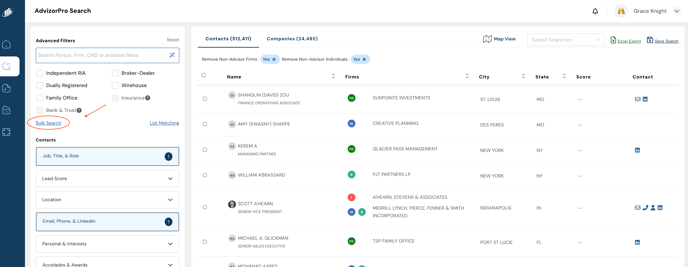
2.a. In Advanced Search, use the Bulk Search feature to copy and paste the list of CRDs you'd like to mark.
2.b. 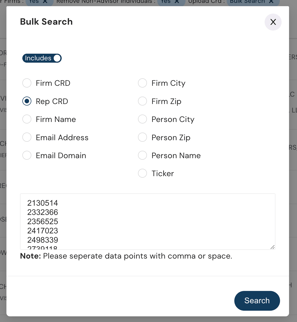
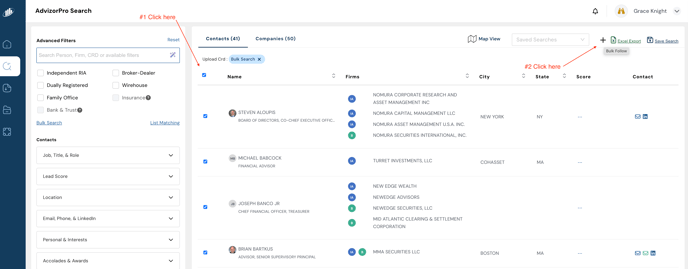
3.a. Select the checkbox to the left of Name, then click the + icon to apply the appropriate Lead Status.
3.b. 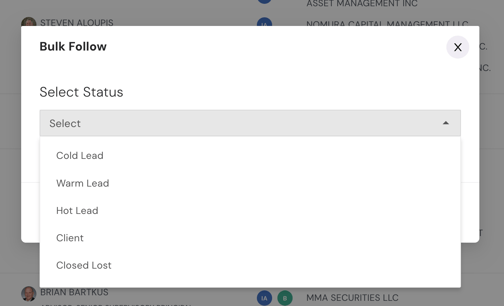
Build Saved Searches
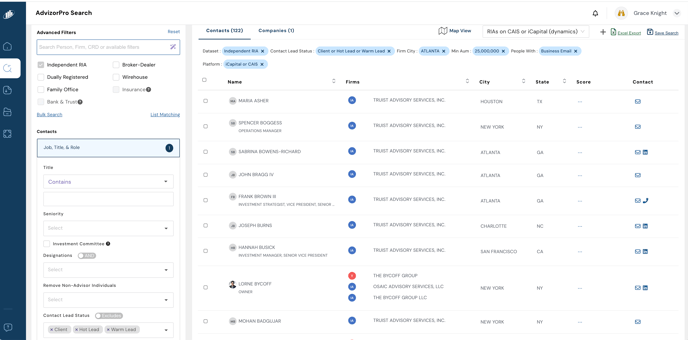
You can build saved searches and apply includes/excludes using Lead Status in the following filters:
-
Contact > Job, Title, & Role > Contact Lead Status
-
Companies > General Information > Firm Lead Status
Example:
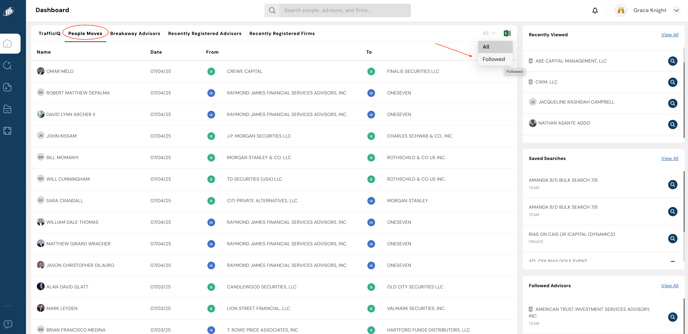
You can view and manage your Followed Advisors in the Dashboard, and filter by them in the People Moves Dashboard for additional insights.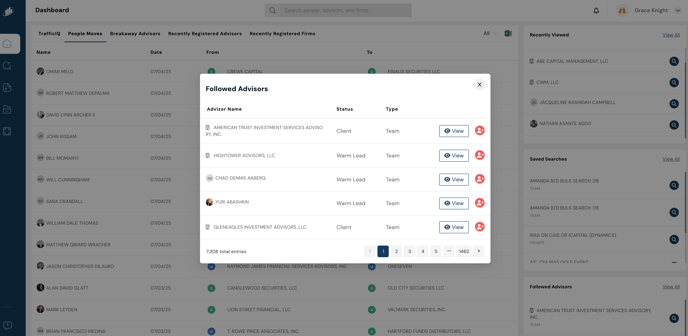
Reach out to your CSM or support@advizorpro.com if you have any further questions.