
API Key and Endpoint
All webhooks need an API key as part of the endpoint URL. This is provided to you by the Integrations Team at AdvizorPro
The base webhook URLs are:
- https://api.advizorpro.com/api/integration/salesforce/person/
- https://api.advizorpro.com/api/integration/salesforce/firm/
So the final URL will be:
https://api.advizorpro.com/api/integration/salesforce/person/your api key here
1. Create Apex Class
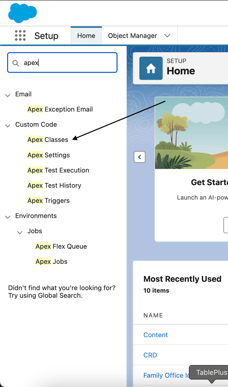
a. Navigate to Settings and search for “Apex”. Click on the “Apex Classes”
b. In the top grid, click on “New”
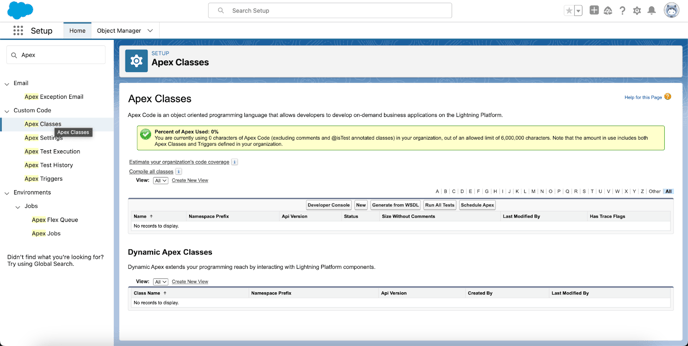
c. Copy/Paste the code provided by AdvizorPro. Please note that the object and fields will be customized to the object you're wanting to enrich and the is unique to your organization and will be issued by AdvizorPro public class
d. Click on “Save” and ensure no errors
2. Enable Salesforce to call AdvizorPro’s API
a. Go to Settings and search for “Remote”
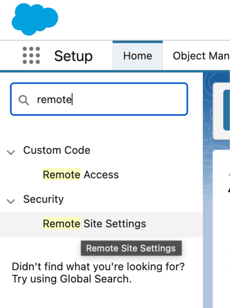
b. Click on “Remote Site Settings”
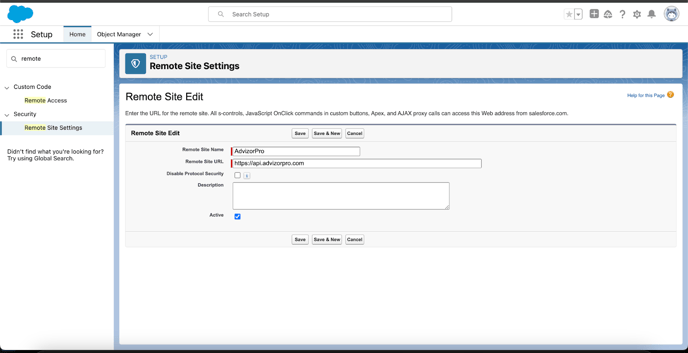
c. Click on “New Remote Site”
d. Enter in “AdvizorPro” for the Remote Site Name and “ https://api.advizorpro.com ” as the Remote Site URL
3. Create Flow to trigger the AdvizorPro Webhook call
a. Go to Settings, search for “Flows”
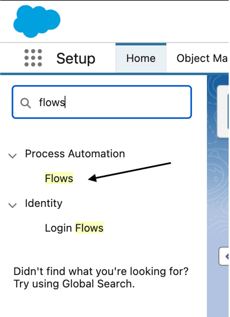
b. Click on “Flows” and click on “New Flow”
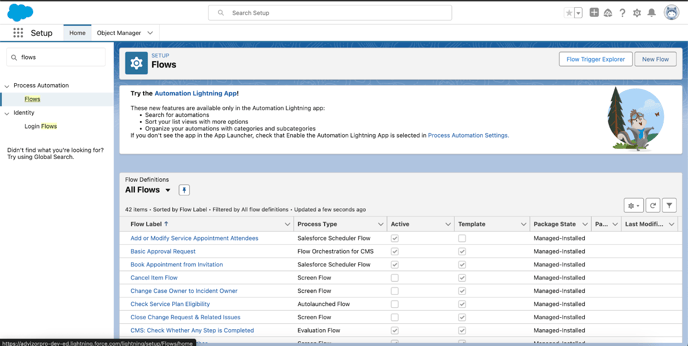
c. Choose the “Start from Scratch” option
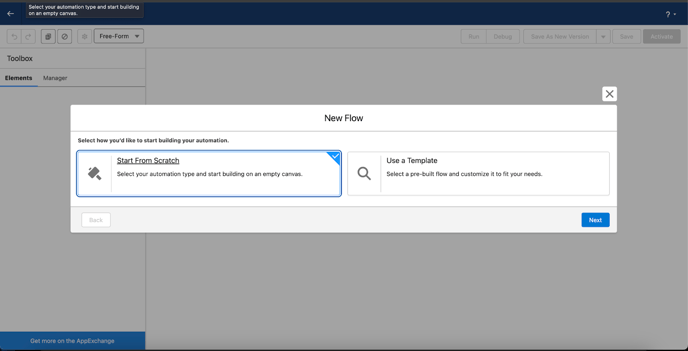
d. Choose “Record-Triggered Flow”
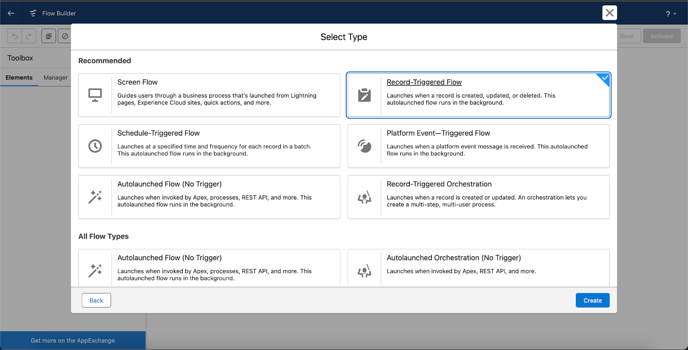
e. Configure the Flows to enroll the desired object, only trigger when a record is created. The Entry condition needs to be set to avoid recursive triggering.. ie if AdvizorPro created the entity, you will map the data point "Record Source" and exclude records where Source is “AdvizorPro”
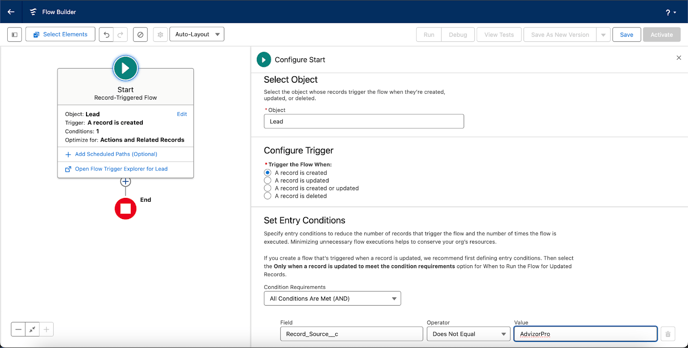
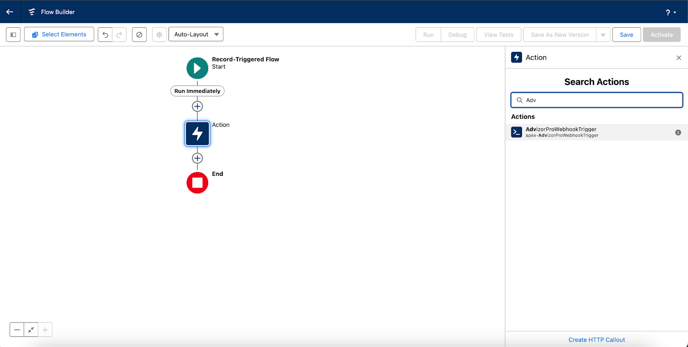
f. Then, to the left, click on the “plus” icon to add a new step. Select “Action” and search for “AdvizorPro” and you should see the Apex Class/Trigger we created in Step 1.
g. Give the Action a label, ie “AdvizorPro Webhook” and at the button, set it to “Include” and search for “Triggering Lead”
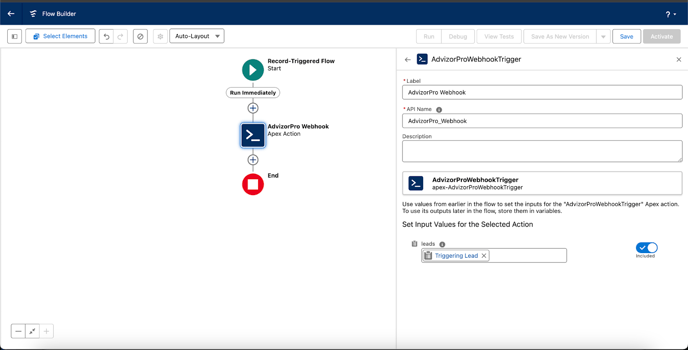
h. Click on Save and then “Activate”
For API key and further instructions to get this implemented, please reach out to your CSM or Integrations Team at integrations@advizorpro.com